
Meeting.ai records your meetings and writes the notes. Connect it to ChatGPT and ChatGPT can read all of it: the notes, the transcripts, who promised what. Then you can say "check it against my meeting yesterday", and it does.
Setup is one plugin and one sign-in. Three moments from an ordinary day show what you get.
You ask for something, and ChatGPT checks your meeting. You are writing a proposal and you are no longer sure which price you quoted. So you type:
@Meeting.ai Draft the proposal for Acme. Check the price and the start date against my meeting with them yesterday.
The draft comes back with the numbers from the call. In this made-up example:
Proposal for Acme

Price: $4,200 per month, as discussed on 13 October.
Start: 3 November, with the support team first.
Still open from the call: who signs on Acme's side.
You paste a Zoom link, and a notetaker joins. Your next call starts in two minutes:
@Meeting.ai Join this call and take notes: [paste the Zoom, Google Meet or Microsoft Teams link]
ChatGPT asks you to confirm. Then the Meeting Bot, the Meeting.ai notetaker, joins the call as a participant, so everyone can see it is there. It records the meeting and writes the notes while you talk.
Halfway through the call, you ask what was decided. The discussion has gone in circles for twenty minutes. In the same chat you type:
What have we decided so far in this call, and what is still open?
ChatGPT reads the live notes and the transcript so far, and answers while the meeting is still going.
ChatGPT knows the meetings Meeting.ai has recorded for you: online calls, in-person meetings you record on your phone, and recordings you upload.
How do you connect Meeting.ai to ChatGPT?
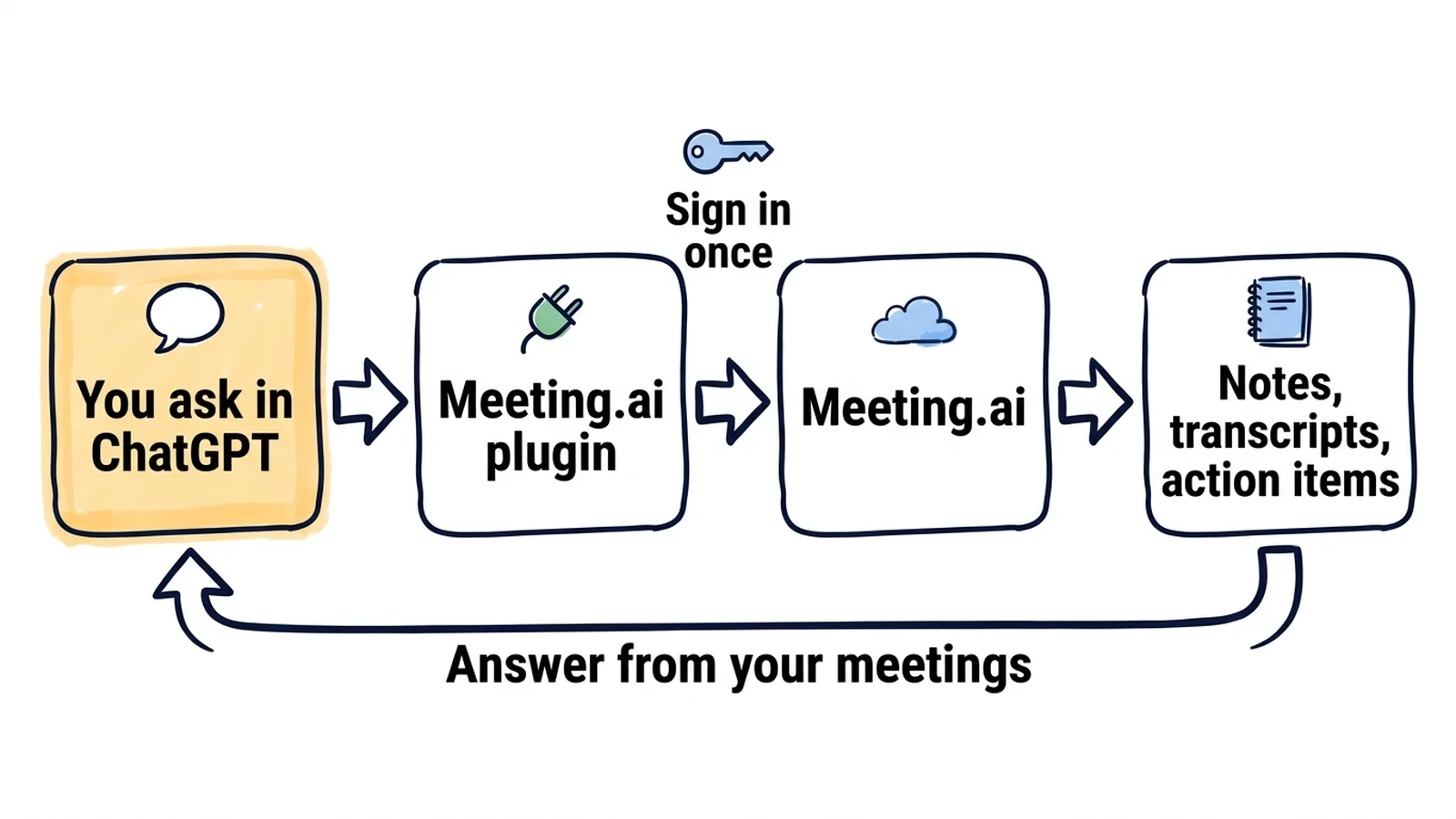
Install the Meeting.ai plugin in ChatGPT and sign in to Meeting.ai once. There is nothing to download.
New to Meeting.ai? Record or upload one meeting first, so ChatGPT has something to read.
- Open the plugin. Go to the Meeting.ai plugin in ChatGPT, or open Plugins in ChatGPT and search for Meeting.ai.
- Install it. Click Install plugin. OpenAI's guide calls this control the plus button.
- Sign in to Meeting.ai. Click Connect. A Meeting.ai page opens in your browser. Sign in with the account you use in the Meeting.ai app. If ChatGPT does not ask you to sign in now, it will the first time you ask about a meeting.
- Allow access. Under Starts in workspace, choose the Meeting.ai workspace ChatGPT should use, then click Allow access.
- Ask your first question. Start a new chat, type
@Meeting.ai, and ask about a meeting. You can also pick the plugin from + or Plugins in the message box.
Start with a question you can check:
@Meeting.ai What were the decisions in my most recent meeting, and who owns each next step?
Open that meeting in Meeting.ai and compare. If they match, it works.
What to ask once ChatGPT can read your meetings
Ask for the work that normally follows a meeting, the way you would ask a colleague who sat in every call. Begin the chat with @Meeting.ai so ChatGPT looks in your meetings and does not answer from general knowledge.
The follow-up email, written before you close the laptop
Find yesterday's meeting with the Acme team. Draft a follow-up email that confirms the decisions and lists each action item with its owner and due date. Keep it under 150 words.
You get a draft like this one, from an invented meeting:
Subject: Follow-up from our call on 13 October

Hi all,

Thanks for the time yesterday. To confirm what we agreed:

- The pilot starts on 27 October with the support team.
- Reporting stays weekly during the pilot.

Next steps:
- Maya: send the pilot checklist by 16 October
- Luis: confirm the training room by 19 October

Open question: who signs off the budget? I will check and reply by Friday.
Read it once against the notes, then send it.
Every action item from the week in one list
List every action item from my meetings since Monday. Group them by owner, add the due date and the meeting each one came from, and mark any item that has no owner.
You get one list instead of five meeting pages. The meeting title sits beside each item, so you can open the source when something looks off.
A brief for tomorrow's client meeting
I am meeting the Acme team again tomorrow. From our past meetings, summarise what we promised, what they asked for, and which questions are still open. End with three questions I should ask.
ChatGPT pulls your earlier meetings with that client into a one-page brief. For the full routine, see how to prepare for a meeting in 15 minutes.
More things to ask
- The exact words. "In last Thursday's planning meeting, what exactly did we say about the delivery date? Quote the lines." You get the passage from the transcript.
- A status update for your manager. "Write a status update from this week's project meetings: progress, blockers, decisions needed. Five bullets at most, each with the meeting it came from."
- A recap across a project. "Recap every meeting about the website relaunch this month: decisions, open questions, and who owns what."
- Everything you agreed with one person. "Summarise my last three meetings where Dana comes up, and list what we promised each other."
- Notes from a recording you already have. "Transcribe this recording and give me the notes: [paste a Google Drive link to the audio or video file]." The file must be shared so that anyone with the link can download it. If you would rather not share it that way, upload the recording in Meeting.ai instead.
- A Visual Note. "Turn Monday's kickoff into a Visual Note." A Visual Note is a one-page drawing of the meeting, saved to your files in Meeting.ai.
- A link to share. "Turn on a share link for yesterday's client call and give me the link." The link is protected by a PIN unless you say otherwise. This works for meetings you own.
- A file for the record. "Export Monday's meeting as a PDF", or "tag last week's client meetings with my Client tag".
- The end of a recording. "Stop recording this call." The Meeting Bot leaves, and Meeting.ai finishes the notes from what it captured once processing is done. This works for meetings you own.
Good to know
- Reading is included. Creating uses your plan. Connecting, searching and reading need no extra purchase while your plan gives you access to the meeting. Sending the Meeting Bot to a call, Visual Notes, and image or audio generation use your Meeting.ai subscription or Coins, the credits in your Meeting.ai account. Editing the notes redraws the Visual Note unless you tell ChatGPT not to, and that uses Coins too.
- ChatGPT asks before it changes anything. Recording, sharing, tagging, exporting and editing need your confirmation by default. Read what it is about to do, then approve.
- Live notes keep changing. During a call, ChatGPT answers from what has been captured so far. Ask again a little later for a fresher answer. The notes become final after the meeting ends and Meeting.ai has finished processing it; until then, ChatGPT can check the meeting's status and you can ask again.
- Check names and numbers. An answer is as accurate as the recording behind it. A name heard wrongly in the call is wrong in the email too.
- Tell people you are recording. Other people are in that recording. Ask before the Meeting Bot joins, and share summaries only with the people who should have them. See is it legal to record a meeting.
- ChatGPT starts in one workspace. If your Meeting.ai account has several, tell ChatGPT which one to use.
Why can ChatGPT not find my meetings?
Usually the chat is not using the plugin, or ChatGPT is looking in the wrong Meeting.ai workspace.
| What you see | What to do |
|---|---|
| ChatGPT answers from general knowledge | Type @ and pick Meeting.ai, then ask again |
| ChatGPT says it cannot find the meeting | Ask it to list your Meeting.ai workspaces and switch to the right one, or search by a word from the meeting title |
| "This connection request has expired" | Go back to ChatGPT and start the connection again |
| "App connections are not enabled" | Connections are not switched on for your Meeting.ai account yet. Click Contact support on that screen, or write to [email protected] |
| The plugin or the install button is missing | Your plan or your workspace may not allow plugins. See the next section |
| ChatGPT says the balance is empty | That action needs a subscription or Coins |
| ChatGPT says the meeting is locked | The meeting's workspace has no subscription or Coins that cover it anymore. Restore them to read it again; for a meeting someone shared with you, its owner has to |
If the Meeting.ai plugin does not show up in ChatGPT
Some plans and workspaces limit which plugins people can install. You, or your IT admin, can add the same Meeting.ai connection by hand. It needs one address:
https://mcp.meeting.ai/mcp- Go to ChatGPT Plugins, click the plus button, then Add custom MCP server.
- Enter a name such as
Meeting.ai. Under Connection, paste the address above as the Server URL. - For authentication, choose OAuth and leave the client ID and secret empty. If ChatGPT asks how to register the client, choose the Client ID Metadata Document option. Meeting.ai does not offer dynamic client registration.
- Read the risk warning ChatGPT shows, click I understand and want to continue, then Create as a plugin.
- Open your personal plugins, open the new plugin, and click the plus button to install it. Then sign in and allow access as in steps 3 and 4 above.
If Add custom MCP server is missing too, your plan or your workspace may not allow it; in a work workspace, ask your admin. OpenAI's guide explains the setting.
How do you disconnect Meeting.ai from ChatGPT?
Open Meeting.ai, go to Settings › MCP & CLI, find ChatGPT under Connected MCP Client, and click Revoke. Access ends immediately. The same page shows when the connection was made, when it was last used, and which workspace it uses.
Changed your mind? Connect again the same way.
Start with the meeting you just left
Open the Meeting.ai plugin in ChatGPT, install it, and ask what was decided. The Meeting.ai MCP page has the same link and the technical details.
Guides for other assistants:
- How to connect Meeting.ai to Claude
- For developers: Codex and Claude Code, for turning meeting decisions into code
- For agents you run yourself, through the memo CLI: Cursor, OpenClaw and Hermes Agent