
Claude can write the memo, but it was not in your meeting. Meeting.ai was. It is a notetaker that records your meetings, online or in person, and turns each one into notes and a full transcript.
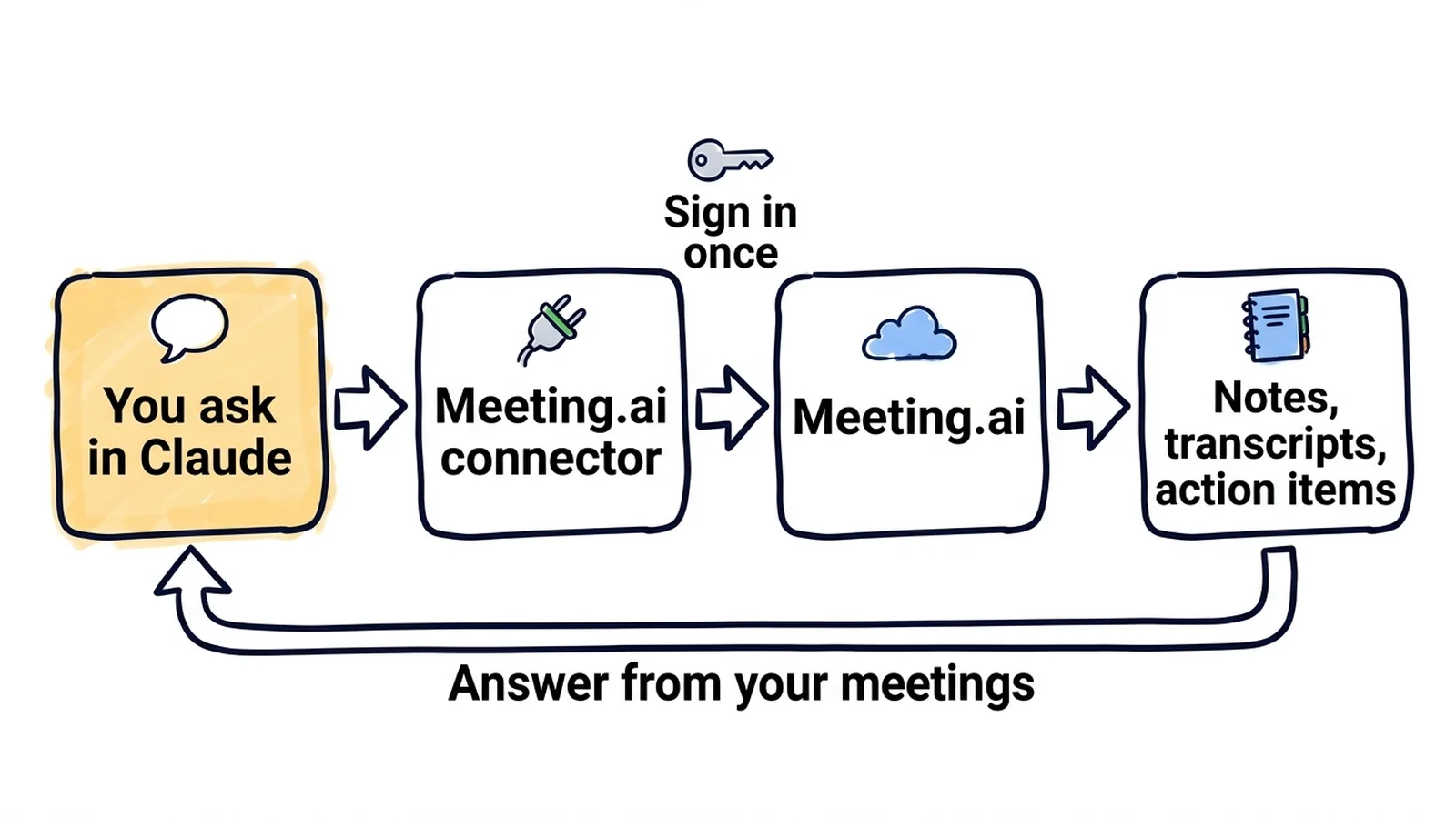
Connect the two and Claude reads the meetings Meeting.ai has recorded for you. The memo or the recap you ask for is then written from what was actually said. You paste one address and sign in once. There is no API key and nothing to install.
You owe your director a memo by five. Monday's planning meeting ran ninety minutes and settled two things. Your own notes are four lines long. You type:
Read my planning meeting from Monday in Meeting.ai. Write a one-page decision memo: context in three sentences, each decision with its reason, the owners and dates, and what was left open.
Claude writes:
DECISION MEMO: Q1 hiring plan (planning meeting, 12 October)

1. Hire two support agents before the second salesperson.
   Reason: support replies now take nine hours.
   Owner: Priya, job posts live by 19 October.
2. Move the website redesign to January.
   Reason: the designer is on the mobile release until December.

Open: who covers weekend support until the new hires start? Nobody took it.
This meeting is invented, like every example on this page.
Tomorrow you tell a client the launch is three weeks late. First you want to know exactly what you promised them.
Tomorrow I have to tell the Kestrel team that the launch moves by three weeks. From our last four meetings in Meeting.ai: what did we promise about the date, and what did they say depends on it? Then help me plan how to open the call.
What you promised
- 2 September: "live by 20 October"
- 23 September: "20 October still holds"

What depends on it for them
- 23 September, their marketing lead: the campaign starts in launch week.

How to open: the new date first, then the reason, then their campaign.
You join a call twenty minutes late. The Meeting Bot, the part of Meeting.ai that joins a call and records it, has been there from the start. You interrupt nobody. You type:
I joined the budget review twenty minutes late. From the live notes in Meeting.ai, what have I missed, and has anyone asked for something from me?
The answer arrives while the call is still running: two decisions you missed, and one question that is waiting for you.
How do you connect Meeting.ai to Claude?
You add Meeting.ai to Claude by pasting one address. Claude calls this a custom connector, and it runs on MCP, the open standard Claude uses to reach outside tools.
You need a Meeting.ai account and a Claude account. On Claude's Free plan you can add one custom connector. On a Team or Enterprise plan, an Owner adds the connector first, as described after the steps. Set it up on the web or in Claude Desktop, and it works on your phone afterwards. If your Meeting.ai account is new, record or upload one meeting first.
The shortest route: open Claude with the form already filled in, review it, and continue at step 4.
To do it by hand, this is the address:
https://mcp.meeting.ai/mcp- Open the connector settings. In Claude, go to Customize > Connectors.
- Start a custom connector. Click Add custom connector.
- Enter the name and the address. Name it
Meeting.aiand paste the address above. Click Continue whenever the dialog shows it. - Change nothing in the sign-in settings. If Claude offers a choice, leave it on Use Claude's published identity. Then click Add.
- Sign in to Meeting.ai. A Meeting.ai page opens in your browser. Sign in with the account you use in the Meeting.ai app.
- Approve the workspace. Under Starts in workspace, pick the workspace Claude should use, then click Allow access.
- Turn it on in a chat. Click + in the message box, click Connectors, and switch Meeting.ai on.
No Add custom connector in step 2? Click + Add first. No Meeting.ai page in step 5? Click Connect on the connector.
Now ask something you can check:
List my three most recent meetings in Meeting.ai with their dates. Then tell me what was decided in the newest one.
Claude can ask for your approval the first time it uses a Meeting.ai tool. If it does, click Allow once. Then compare the answer with the newest meeting in Meeting.ai. If the two match, you are connected.
Team and Enterprise plans: an Owner adds it first
An Owner or Primary Owner adds the connector once for the organization. After that, each member connects their own Meeting.ai account.
- The Owner opens Organization settings > Connectors, clicks Add, then Custom, enters the name and the address above, and clicks Add. If Claude asks for the type, it is Web.
- Each member opens Customize > Connectors, finds Meeting.ai in the list, and clicks Connect.
Everyone signs in to Meeting.ai separately, so each person sees only the meetings their own account can access. Anthropic's connector guide shows the current screens.
What to ask Claude once it can read your meetings
Switch Meeting.ai on in the chat, as in step 7, then ask.
A decision, with every argument in front of you
The arguments are spread over three meetings, and you remember the loudest one best.
I have to decide by Friday whether we raise prices in January. Read the three pricing meetings from the past month in Meeting.ai. Lay out the case for and against, with who made each point. Then list the questions nobody has answered.
For a January increase
- Kofi, 22 September: margin is down two points since June.
- Ines, 6 October: three competitors have already raised prices.

Against
- Greta, 6 October: 40 annual customers renew in January
  and were told prices would hold.

Not answered in any meeting
- Do existing customers keep the old price?
- Who tells the 40 customers who renew in January?
Stay in the same chat and push on it: ask which argument is weakest, or what you need to know before you decide.
A month of client calls on one page
A client wants a review next week, and you met them six times in September.
Recap all my Halden meetings from September into one summary: decisions, open questions, and action items with owners.
Claude finds all six, reads them and gives you one page.
A brief for the colleague who starts next week
Someone new joins a project that is four months old, and nobody has a free afternoon to explain it.
A new colleague joins the project next week. From our last five project meetings, write an onboarding brief: goals, who does what, decisions already made, open risks.
The brief includes the reasons behind the decisions. A handover usually leaves those out.
More things to ask
- A read-back before everyone hangs up. "We have five minutes left in this call. From the live notes, list what each person agreed to do." Read it out and let people correct it.
- A notetaker for your next call. "Send the Meeting Bot to this call and take notes: [paste the Zoom, Google Meet or Microsoft Teams link]." Unless you chose Always allow for that tool, Claude asks you to confirm first. Then the Meeting Bot joins as a participant.
- Formal minutes. "Write formal minutes for Monday's steering meeting with the headings Attendees, Decisions, Action items and Open questions. Mark anything missing as 'To confirm'."
- One person's commitments. "What has Jonas committed to in our meetings this month? List each commitment with the meeting it came from and its due date."
- What the client actually said. "Quote what the client said about the renewal in last week's call." You get the passage from the transcript.
- A customer FAQ. "From this month's customer calls, list the questions customers asked most and draft a short answer to each, with the calls each one came from."
- A proposal that promises only what was agreed. "From my last two meetings with the Marlow team, draft the Scope and Timeline sections of a proposal. Mark anything still unconfirmed."
- A Visual Note. "Turn Monday's kickoff into a one-page Visual Note." It is a drawing of the meeting, saved to your files in Meeting.ai.
When you ask, Claude also shares a meeting, exports it as a PDF, tags it, or transcribes a recording from a Google Drive link that anyone with the link can download. If you would rather not share a file that way, upload it in Meeting.ai instead.
Good to know
- Tell people before you record. The Meeting Bot records what other people say. Get their agreement first, and send summaries only to the people who should have them. See is it legal to record a meeting.
- Check names, numbers and dates. Compare them with the meeting page in Meeting.ai before you send anything.
- Keep the tools that change things on approval. Always allow suits searching and reading. For editing, sharing and recording, let Claude ask each time.
- Live notes are a draft. They keep changing until the meeting ends, so ask again when you need a fresher answer.
- Reading costs nothing extra while your plan gives you access to the meeting. Sending the Meeting Bot, Visual Notes, and image or audio generation use your Meeting.ai subscription or Coins, the credits in your account. Editing the notes uses them too, because the Visual Note is redrawn by default.
- Claude uses the workspace you approved. It reaches only what your Meeting.ai account can access. If you belong to several workspaces, tell it which one to use.
- Your screens can look different. We wrote the steps from Anthropic's documentation and did not click through them in Claude ourselves, and Anthropic says the dialog varies by organization. If a step looks different, write to [email protected].
Why can Claude not find my meetings?
Usually the connector is switched off in that chat, or Claude is looking in the wrong workspace.
| What you see | What to do |
|---|---|
| Claude answers from general knowledge | Click +, then Connectors, and switch Meeting.ai on for this chat |
| Claude says it cannot find the meeting | Ask Claude to list your Meeting.ai workspaces and switch to the right one, or search by a word from the meeting title |
| The connector shows Connect or Reconnect | Click it and sign in to Meeting.ai again |
| "This connection request has expired" | Go back to Claude and start the connection again |
| "App connections are not enabled" | Connections are not enabled for your Meeting.ai account yet. Ask for them: click Contact support on that screen, or write to [email protected] |
| You cannot add a connector | On Team, ask an Owner or Primary Owner. On Enterprise, a custom role that manages Libraries can add it too. On Free, the limit is one custom connector |
| Claude says the meeting is locked | The meeting's workspace has no subscription or Coins that cover it anymore. Restore them to read it again; for a meeting someone shared with you, its owner has to |
How do you disconnect Meeting.ai from Claude?
In Meeting.ai, go to Settings › MCP & CLI, find Claude under Connected MCP Client, and click Revoke. Access ends immediately, and Claude's next request is refused.
That page also shows when the connection was made, when it was last used, and its active workspace. You can remove the connector on Claude's side too, under Customize > Connectors.
Start with the memo you owe someone
Copy the address above, add the connector, and ask Claude for the memo from your last meeting. The technical details are on the Meeting.ai MCP page.
Guides for other tools:
- Connect Meeting.ai to ChatGPT
- For developers: Claude Code, including the Meeting.ai plugin for Claude Code and Cowork, and Codex, for turning meeting decisions into code
- For agents you run yourself, through the memo CLI: Cursor, OpenClaw and Hermes Agent