

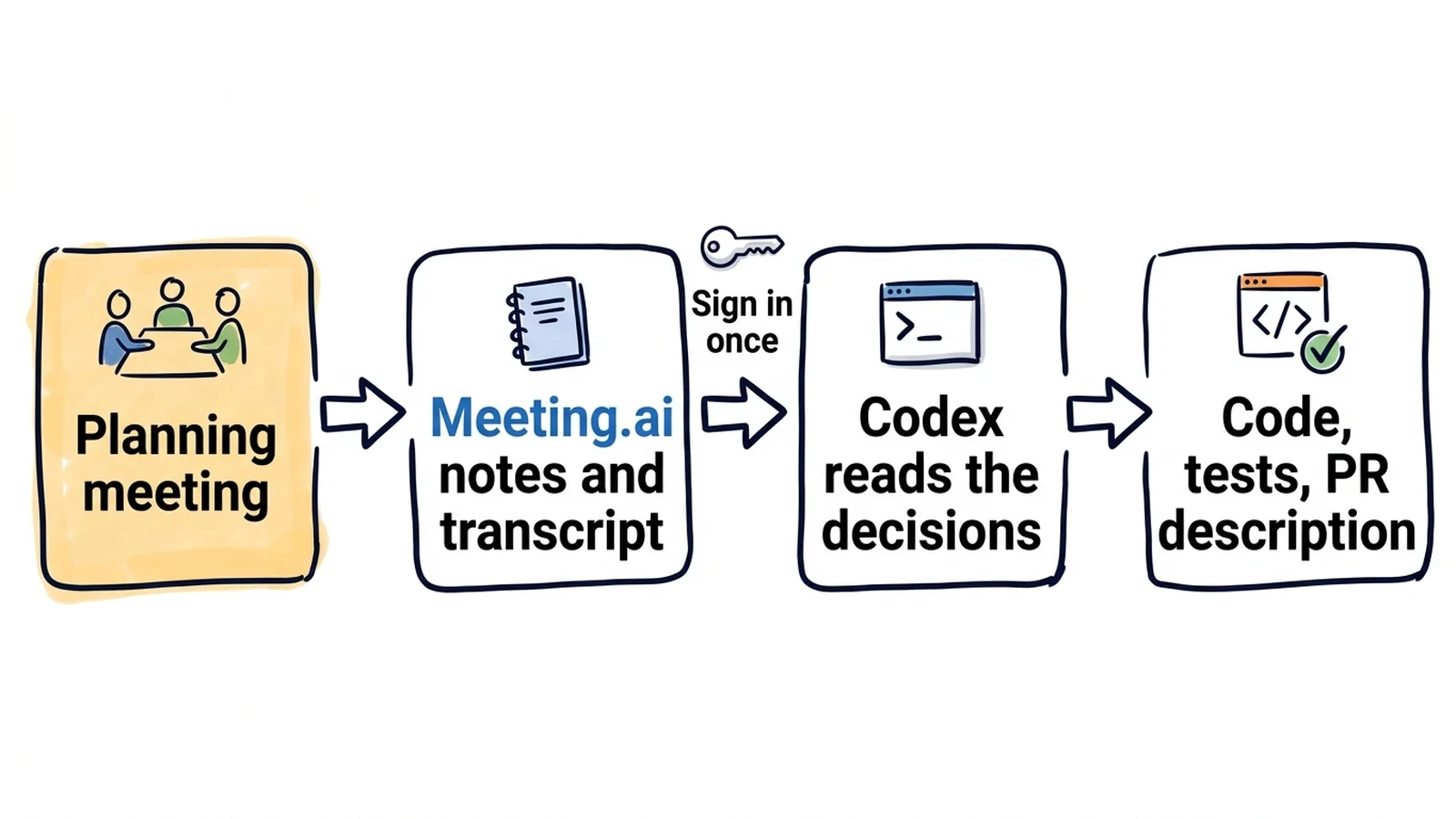
Meeting.ai records your team's meetings, writes the notes and keeps the full transcript. Connect it to Codex and Codex can read what your team decided in a planning call and build from it, inside your repository. Nobody retypes anything.
It works on meetings Meeting.ai has recorded: calls the Meeting Bot (the Meeting.ai notetaker) joined, and meetings you record or upload yourself.
Setup is one command and a browser sign-in. There is no API key or token to store.
codex mcp add meeting-ai --url https://mcp.meeting.ai/mcpThe connection gives Codex 20 tools. Seven only read: search meetings, read notes, read and search transcripts, search contacts and Drive, list workspaces. The rest write, and you decide whether Codex may use them. The setup section has the config.toml block that keeps it to reading.
Yesterday's planning meeting is the spec. The team agreed the webhook retry rules out loud, and nobody wrote a ticket. In the repository you type:
Use Meeting.ai to find yesterday's planning meeting about webhook retries. Read the notes, then search the transcript for the exact rules we agreed. Implement them in this repo with a test for each rule. List anything the meeting left open instead of guessing.
Codex makes the change and lists the rules it used:
From "Webhook retries planning" (13 October):
1. Retry a failed delivery 5 times, with exponential backoff from 30 seconds.
2. Do not retry a 4xx response, except 429.
3. After the last failure, mark the endpoint as failing and stop sending.

Left open in the meeting:
- Whether to email the customer when an endpoint is marked as failing.
  Not decided. Left as a TODO with a skipped test.

Changed: internal/webhooks/retry.go, internal/webhooks/retry_test.go
(3 tests added)
The outputs in this post are illustrations, written for invented meetings. Read the "left open" list first. A rule nobody decided goes back to the team as a question.
Check a branch against the review before a person does. Last Thursday's API review changed the pagination design, and your branch is older than that.
Compare the diff on this branch with what we agreed about pagination in Thursday's API review in Meeting.ai. List every point where the code differs from the agreement and quote the transcript line for each one.
You get each difference beside the sentence that settled it. The review chose cursor pagination; the branch still accepts offset. The agreed page size was 50; the code says 100.
Ask about a call that is still running. The incident review started without you, because you are fixing the incident. Paste the invite link:
Use Meeting.ai to send the Meeting Bot to this call: [paste the Zoom, Google Meet or Microsoft Teams link]
Codex asks before it runs the tool, unless your approval settings say otherwise. The Meeting Bot then joins as a visible participant and records the call. That uses your Meeting.ai subscription or Coins, the credits in your Meeting.ai account; connecting and reading cost nothing extra while your plan gives you access to the meeting. Twenty minutes later, in the same session:
From the live notes in Meeting.ai, what has this call decided so far about the rollback? Does this branch do the same thing?
The answer comes from the live notes and the transcript captured up to that point.
How do you connect Meeting.ai to Codex?
You need Codex and a Meeting.ai account with at least one workspace. The server is hosted by Meeting.ai, so nothing is installed on your machine.
codex mcp add meeting-ai --url https://mcp.meeting.ai/mcp- Add the server. Run the command. Codex saves the server and opens Meeting.ai in your browser.
- Sign in and approve. Sign in with your Meeting.ai account. The screen names the app that wants to connect and lists what it may do. Read it, pick the workspace under Starts in workspace, then click Allow access.
- Check the connection. Run
codex mcp list. The Auth column readsNot logged inbefore you approve andOAuthafter. Inside a Codex session, type/mcpto see the active servers.
If the browser did not open, or you need to sign in again later, run codex mcp login meeting-ai. Over SSH, add --no-browser: Codex prints the authorization URL, you open it on a machine with a browser, and you paste the callback URL back into the terminal when Codex asks for it.
Test it on a meeting you sat in:
Use Meeting.ai to find my most recent meeting and list what was decided.
You were there, so you can tell at once whether the answer is right.
Add it in config.toml instead
Codex keeps MCP servers in ~/.codex/config.toml. This entry is equivalent to the command:
[mcp_servers.meeting-ai]
url = "https://mcp.meeting.ai/mcp"
Then run codex mcp login meeting-ai. The file holds only the URL. To share the server with a team, put the same table in .codex/config.toml in the repository. Codex reads project configuration for trusted projects only, and each developer still signs in with their own Meeting.ai account.
Keep Codex read-only
List the tools Codex may see, and make it ask before anything that writes:
[mcp_servers.meeting-ai]
url = "https://mcp.meeting.ai/mcp"
enabled_tools = ["meetings_search", "meetings_notes", "meetings_transcript", "meetings_transcript_search"]
default_tools_approval_mode = "writes"
enabled_tools is the whole list Codex gets, here four of the read tools as an example. The last line makes Codex prompt before any tool that is not marked read-only. Leave enabled_tools out and keep that line if you want Codex to be able to send the Meeting Bot and ask first.
Use the IDE extension or the ChatGPT desktop app
The CLI, the IDE extension and the ChatGPT desktop app share the same configuration, so the server you just added is already there. To add it from the interface instead:
- In the app, open Settings, then MCP servers. In the IDE extension, open the gear menu, then MCP servers.
- Click Add server, enter the name
meeting-ai, choose Streamable HTTP, and paste the URL. - Save, then click Restart in the app or Restart extension in the IDE.
- Click Authenticate and sign in to Meeting.ai.
Good to know
- What we ran ourselves. We checked the command syntax and the
config.tomltable with codex-cli 0.160.0; the browser sign-in and the app and IDE steps are written from OpenAI's documentation, and we have not run them ourselves. Tell us if a step looks different on your machine. - Notes first, transcript second. The notes hold the decisions, and usually the action items, in a few sections. The transcript is long and comes back one page at a time, so ask Codex to read the notes and then search the transcript for the specific detail.
- Check what a meeting decided. A decision made in a call can be vague, or reversed five minutes later. Ask for quotes, and ask Codex to list what was left open.
- Live notes are provisional. A mid-call answer reflects what has been captured so far, and the notes keep changing until the meeting ends. Ask again before you act on one.
- Keep transcripts out of the repository. Decisions belong in a PR description. Raw transcripts with colleagues' words do not belong in a commit.
What to ask Codex
Name the meeting by day or topic, and mention Meeting.ai in the prompt so Codex looks there.
Sprint planning becomes tickets
From Monday's sprint planning meeting in Meeting.ai, write one ticket per agreed task as Markdown: title, context from the discussion, acceptance criteria, and the owner named in the meeting. Save them to docs/sprint-tickets.md.
One ticket from that file:
## Return rate-limit headers on every API response

Context: Two customers hit the limit last week with no warning.
Raised by Priya in sprint planning on 12 October.

Acceptance criteria:
- Every response carries X-RateLimit-Limit, X-RateLimit-Remaining
  and X-RateLimit-Reset.
- A 429 response also carries Retry-After, in seconds.
- Internal service tokens are exempt.

Owner: Tomas
The criteria come from the transcript, edge cases included.
A PR description that says why
The reviewer was not in the design review, and the diff does not explain itself.
Write the PR description for this branch. Explain why each change was made, using the decisions from our design review on 9 October in Meeting.ai, and list what the meeting agreed that this PR does not cover yet.
The last part of the prompt gives you the scope of the next PR.
One requirements list from four meetings
In Meeting.ai, list every requirement mentioned for the export feature across the last four planning meetings, and mark the ones that conflict.
A feature that came up in four meetings was changed a little in each. Settle the conflicts before anyone writes code.
More things to ask
- A quote to settle an argument. "In Thursday's API review in Meeting.ai, what exactly did we say about rate limits? Quote the transcript."
- A migration and its rollback. "Write the migration and its rollback exactly as we agreed in the database review in Meeting.ai. List anything the meeting left undecided."
- Review prep. "Prepare me for tomorrow's design review: summarise what this branch changes and list the open questions from the last review meeting in Meeting.ai."
- Release notes with sources. "Write release notes for this sprint from the decisions in the sprint's planning and review meetings in Meeting.ai, and name the meeting behind each item."
- An on-call handover. "From today's incident review in Meeting.ai, write the handover note for the on-call engineer."
- A recording nobody took notes on. "Use Meeting.ai to transcribe this recording of the vendor demo and list every API limit they mentioned: [paste a Google Drive link to the file]." The file must be downloadable by anyone with the link; otherwise upload it in Meeting.ai.
Why can Codex not find my meetings?
Usually the sign-in was never finished, or Codex is looking in the wrong workspace.
| What you see | What to do |
|---|---|
Not logged in in codex mcp list | Run codex mcp login meeting-ai and finish the sign-in in the browser |
| No browser on the machine | Run codex mcp login meeting-ai --no-browser and open the printed URL on another machine |
Server missing in /mcp | Check that codex mcp get meeting-ai shows it as enabled, then start a new Codex session |
| Codex finds no meeting | Ask it to list your Meeting.ai workspaces and switch to the right one, or search by a word from the title |
| "App connections are not enabled" | Connections are not switched on for your Meeting.ai account yet. Click Contact support on that screen, or write to [email protected] |
| A tool reports an empty balance | That action needs a subscription or Coins |
| Codex says the meeting is locked | The meeting's workspace has no subscription or Coins that cover it anymore. Restore them to read it again; for a meeting someone shared with you, its owner has to |
| A tool is missing | Start a new Codex session so the tool list is loaded again, and sign in again if asked |
| Dynamic client registration error | You are going through a bridge or proxy that registers clients dynamically, which Meeting.ai does not offer. Add the server directly in Codex, as shown above |
How do you disconnect Meeting.ai from Codex?
Run codex mcp logout meeting-ai to drop the stored credentials, or codex mcp remove meeting-ai to delete the server entry.
To cut access from the Meeting.ai side, open Settings › MCP & CLI, find the entry for Codex under Connected MCP Client, and click Revoke. The entry can be listed as ChatGPT, because Codex signs in through chatgpt.com. Revocation takes effect immediately.
The memo CLI, for scripts
memo is the Meeting.ai command-line tool. It reaches the same meetings with the same account and prints JSON. The installer supports macOS and Linux and verifies the release checksum.
curl -fsSL https://raw.githubusercontent.com/meeting-ai/memo-cli/main/install.sh | bashThen open a new terminal, so your shell finds memo in ~/.local/bin, and run:
memo auth login
memo meetings search --keyword "checkout"
memo meetings get <id> --all
memo install-skill-md adds a file that teaches a coding agent the commands. See the Meeting.ai CLI page and the CLI guide.
Start with yesterday's planning meeting
Add the server, sign in, and ask Codex to implement one thing your team agreed this week. The Meeting.ai MCP page lists every tool.
The same connection in other tools:
- Connect Meeting.ai to Claude Code
- Connect Meeting.ai to ChatGPT
- Connect Meeting.ai to Claude
- Through the memo CLI: Cursor, OpenClaw and Hermes Agent