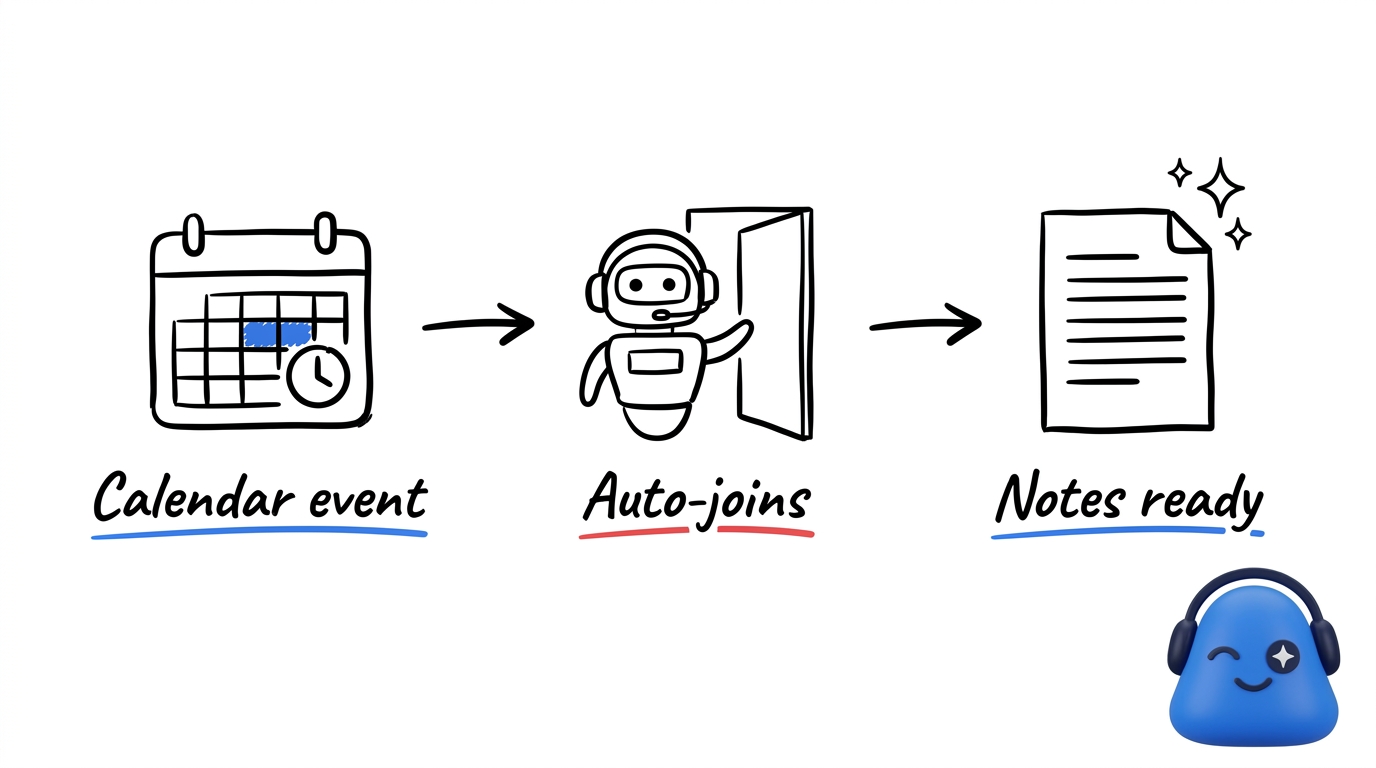
Connect a Google or Outlook calendar so your upcoming meetings show up in Meeting.ai and get captured without extra steps.
Connect a calendar
Open calendar settings and connect your Google or Outlook account. Once connected, your scheduled events appear in Meeting.ai, so you can pick an event instead of pasting a link when you want notes from a call.
Auto-join scheduled calls
Turn on auto-join and the Meeting Bot joins your scheduled video calls on its own. You stay in the conversation while the call is captured for you. You can leave auto-join off and send the bot to calls one at a time instead.
Reminders, time zone, and notes
A few settings keep the calendar working the way you expect:
- Reminders — choose whether and when you get a heads-up before a meeting starts.
- Time zone — set your time zone so events show at the right local time.
- Visual Note — choose whether each meeting gets a Visual Note generated for it.
With a calendar connected, your meeting history keeps building — and your agent always has fresh context to work from. Want people to book time with you? See your booking page.