

Join and record a meeting
Send the notetaker to Google Meet, Zoom or Teams.
MEETING.AI MCPAlso available as CLI
Meeting.ai joins and records your meetings, writes the notes, and creates the files — now your agents can work with those meetings through Meeting.ai MCP or the Meeting.ai CLI.
Chat assistants & personal agents
 Claude
 ChatGPT
 Grok Bot
 OpenClaw
 Hermes Agent
Coding agents
Claude Code Cursor
 OpenCode
 Meeting.ai
Meeting.ai capabilities
NINE THINGS YOU CAN ASK FOR
What your agent can do with Meeting.ai
Send the notetaker to Google Meet, Zoom or Teams.
Decisions, action items, exact quotes.
Any audio or video, 30+ languages.
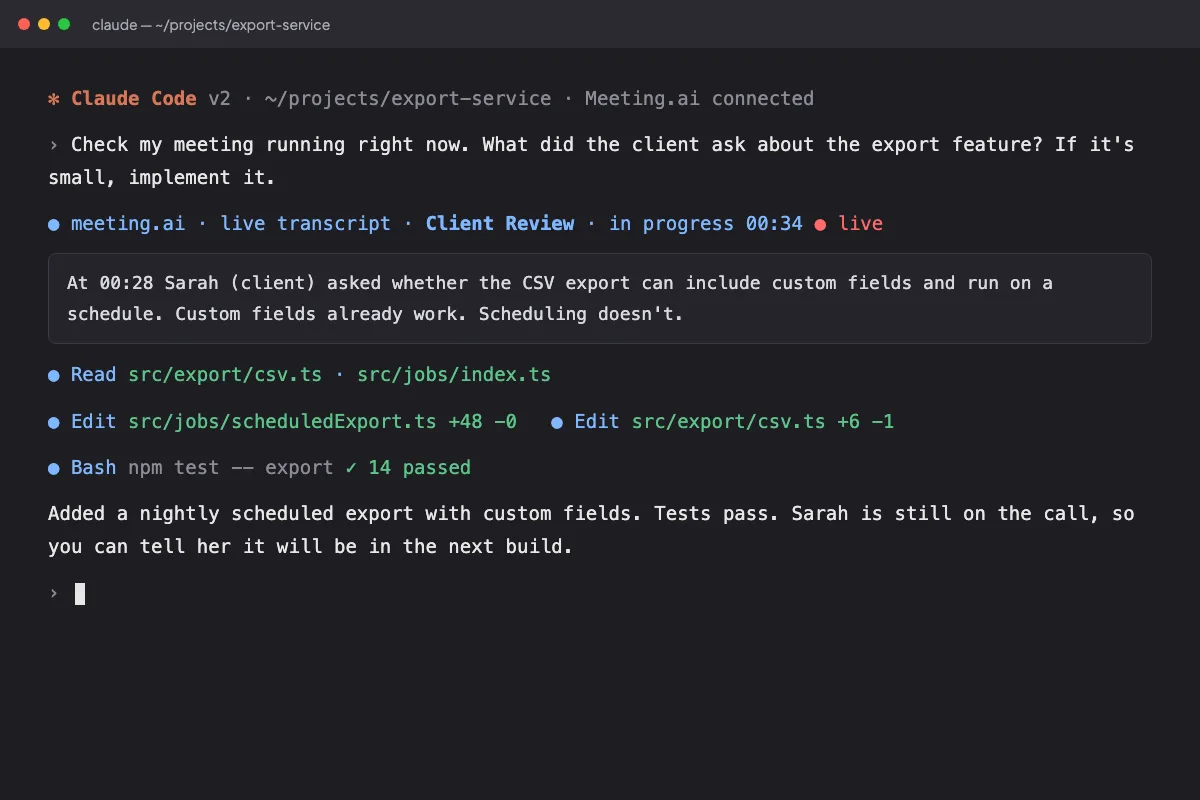
Read what was just said, research it, answer before the call ends.
Correct a name, add context, share with a colleague.
What one person said across all your meetings.
Flows, systems, decision trees, hand-drawn.
Hand-drawn poster artwork for an announcement or event.
Decks and documents from a meeting, saved to Drive.
Illustrative conversations with sample meetings.
FOR CODING AGENTS
Bring the meeting’s context into Claude Code, Cursor, OpenCode, or any agent with a terminal.
SETUP
Choose your assistant, add the hosted URL, then approve access in Meeting.ai.
SERVER URL
Use this URL in your assistant’s setup below. Then sign in to Meeting.ai and choose a workspace.
https://mcp.meeting.ai/mcpEach tab shows how to connect Meeting.ai and links to the tool’s official guide.
Turn on developer mode in ChatGPT settings.
Open Apps › Create, paste the server URL, choose OAuth, and scan tools.
Sign in to Meeting.ai, then select the new app in a chat.
CAPABILITY AVAILABILITY
Everything except creating and saving files is available through MCP and the CLI.
| Capability | MCP | CLI | Meeting.ai app |
|---|---|---|---|
| Join and record a meeting | Available | Available | Available |
| Ask about any past meeting | Available | Available | Available |
| Transcribe a recording | AvailableGoogle Drive | Available | Available |
| Get help during a live meeting | Available | Available | Available |
| Fix, enrich and share notes | Available | Available | Available |
| Ask by person | Available | Available | Available |
| Draw a sketch diagram | Available | Available | Available |
| Make a poster | Available | Available | Available |
| Create and save files | Not available | Not available | Available |
QUESTIONS & ANSWERS
Your meetings stay in your control.
Meetings available to your account in the workspace you approve: meeting details, participants, notes, decisions, action items, and transcripts. The CLI also reads workspaces, contacts, and Drive data.
Yes. MCP and the CLI can read and write through the capabilities available to your account. They can join and record meetings, transcribe, work with notes, and create media. Creating and saving files is not available yet.
Open Meeting.ai Settings › MCP & CLI and revoke the connection or CLI session. That assistant or terminal loses access. Sign in again when you want to reconnect.
Yes. Any assistant that speaks MCP can connect, including Grok Bot. Claude Code, Cursor, OpenCode, and other agents with a terminal can also use the CLI.
Your meetings are encrypted in transit and protected by access controls. We never use your meeting content to train public AI models. Revoke access any time in Settings › MCP & CLI.