

Put your phone in the middle of the table, tell the room you're recording, and use an app that transcribes and separates speakers — you'll leave with a transcript, notes with decisions and action items, and a one-page visual of the meeting, without anyone typing.
For a small meeting room, the basic kit is one charged phone, a recording app, and one clear sentence of consent. Keep the phone about 1–2 m from the people you need to hear. Move it away from an air conditioner or projector fan, turn on Do Not Disturb, and make a short test recording before people arrive.
You have three workable recording methods. A meeting app gives you live notes and speaker separation. A laptop browser is useful when your phone needs to stay available. A plain voice memo is the reliable fallback when you only need to capture audio now and process it later. The first table below shows the trade-off.
The simplest setup is usually the best: one phone, one recording owner, clear consent, and a short sound check.
What do I need to record an in-person meeting well?
You need a charged phone, an app that can save room audio, and clear agreement from the people in the room. Bring a power bank for a long session. Check that the app has microphone permission and that the phone has free storage. If you need a live transcript, confirm the room has stable Wi-Fi or mobile data.
Choose the method by what you need during the meeting, not by the longest feature list.
| Method | Setup | Speaker separation | Notes quality | Best for |
|---|---|---|---|---|
| Meeting app on a phone | Open the app, choose In-person, and record from the table | Built in when the app supports it; known voices can be named | Live notes plus a processed transcript and summary | Recurring client, team, and project meetings |
| Browser on a laptop | Open the recording page and use the laptop microphone | Available when the service supports room-audio separation | Good when the laptop sits close to the conversation | A room where the phone must stay free |
| Phone voice recorder, then upload | Record locally, stop, and upload the audio afterward | Applied after upload if the service supports it | No live notes; final output can still be detailed | Unreliable internet or a simple backup recording |
Whichever method you choose, assign one person to own the recording. That person checks consent, starts it, watches the battery, and stops it. Shared responsibility is how recordings get missed.
Name the meeting before or immediately after recording. “Client kickoff, 22 August, Jakarta” is easier to find later than “New recording 47.” If the app lets you add participants or contacts, do that before the conversation. Those names help when you review speaker labels.
Where should the phone go?
Put the phone near the center of the conversation, screen up, about 1–2 m from the speakers. A bare table can transmit taps and keyboard vibration, so place the phone on a thin notebook or soft coaster without covering its microphones. Do not put it in a pocket, beside a laptop exhaust, or directly under a ceiling vent.
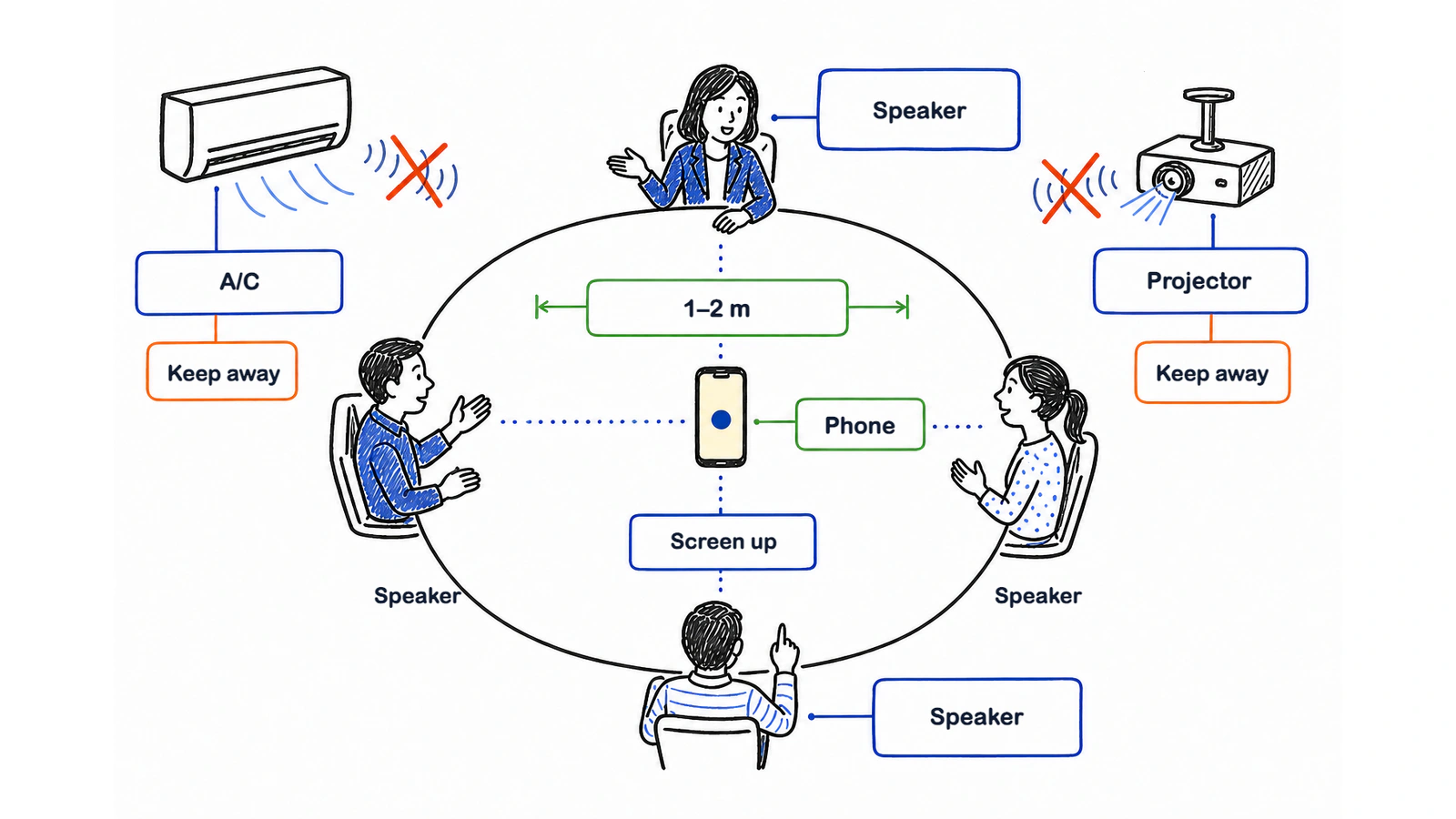
For a small round table, the middle is usually right. For a long table, place the phone closest to the people whose decisions and updates matter most. This guide does not assume that two phone recordings can be merged, so do not create two separate files unless your chosen service explicitly supports that workflow.
Before the meeting, make a short recording from the planned position. Ask someone in the nearest and farthest seats to speak at normal volume. Play it back through headphones. If the far seat sounds distant, move the phone closer or change seats now, not after the meeting.
What do I say before I press record?
Say what you are recording, why, and what people will receive, then wait for a clear yes. A useful script is:
“I'd like to record this meeting so we can share an accurate transcript, decisions, and action items afterward. Is everyone okay with that?”
If someone says no or sounds unsure, do not start. Offer handwritten notes, or agree to record only a non-sensitive section. A bot appearing in a participant list is not a substitute for telling people, and an app that works without a bot does not remove your responsibility to ask.
Rules differ by place and situation. Some jurisdictions allow a participant to record, while others require everyone to agree. Company policy and confidential subject matter can add another layer. Read the country-by-country guide, Is it legal to record a meeting?, before using a recording in a formal, employment, health, or legal setting.
How do I record with Meeting.ai on my phone?
Open Meeting.ai, choose In-person, name the meeting, and press record. Put the phone in the tested position and leave the recording screen open. Memo takes notes while people talk, so you can see decisions and action items forming without becoming the room's typist.
- Charge the phone and turn on Do Not Disturb.
- Open Meeting.ai and choose In-person.
- Give the meeting a specific name.
- Tell the room and get agreement.
- Press record, place the phone, and check that audio activity is visible.
- Stop the recording when the discussion ends.
- Review the transcript, AI-Powered Summary, and Visual Note before sharing.
The live view is useful when a decision needs to be stated more clearly. If the note says “send proposal” but nobody named an owner or date, pause the discussion and ask. The recording is evidence of what was said; it cannot invent a commitment the room never made.
For the complete setup flow, see Record and upload and Your first meeting. Meeting.ai can record In-person from its mobile app or a browser; check the current product page for platform availability and account limits.
How does the app know who said what?
Voice Match connects a recurring speaker's voice profile to a contact, then uses that match to label who said what. Without a saved match, speaker separation can still divide the conversation into different voices, but you may need to assign the names afterward.
Set up participants before a recurring meeting when possible. If Priya, Daniel, and Mei join every Monday, save them as contacts and confirm their voice profiles once. On the next transcript, check the opening section and a passage where each person speaks alone. Correcting an early label is faster than fixing a complete set of minutes later.
No microphone or model can perfectly separate two people talking over each other. Very similar voices, quiet side conversations, a speaker far from the phone, or a loud room can also produce the wrong label. Ask people to avoid crosstalk when stating decisions. For board minutes, interviews, or disciplinary meetings, compare every consequential quote and owner against the audio.
The Contacts and Voice Match guide explains how saved voices and names work.
Can I use a plain voice memo instead?
Yes. Record the room with the phone's built-in voice recorder, then upload the audio to a service that produces a transcript and notes. Meeting.ai accepts audio and video uploads, so the completed file can still become a time-stamped transcript, AI-Powered Summary, and Visual Note.
A voice memo is a good choice when internet access is uncertain, a guest does not want another app on their phone, or you need a simple backup. It also leaves you with an original file you can play before uploading. Name the file with the meeting and date, and keep it in a protected folder until processing finishes.
The trade-off is that you will not see live decisions or action items. You also cannot catch a missing owner while the room is still together. If the meeting is routine and the final notes matter more than live prompts, that may be fine. Follow the full workflow in Turn a voice recording into meeting minutes.
What goes wrong, and how do I fix it?
Most failed room recordings come from placement, interruptions, crosstalk, or power, so check those four things before changing apps.
How do I reduce room noise?
Move the phone away from air conditioners, projector fans, open doors, coffee machines, and laptop exhaust. Close the door if hallway speech is louder than the room. Put the phone nearer the speakers instead of asking a microphone to remove distance. A quiet room with an ordinary phone usually gives you more usable speech than a noisy room with an expensive recorder.
What should I do when people talk over each other?
Ask one person at a time to state decisions, owners, and deadlines. Natural conversation will overlap, but the final commitment should be repeated cleanly: “To confirm, Maya owns the revised budget and will send it Friday.” That sentence improves the transcript and gives every attendee the same understanding.
Can the room switch between two languages?
Choose an app that supports both languages and avoid assuming every mixed sentence will be perfect. Meeting.ai supports transcription across 30+ languages, including English, Indonesian and Malay. Afterward, check names, product terms, abbreviations, and every sentence where people switched languages. Keep the original audio until that review is complete.
What changes with 6 or more people?
Put the phone closest to the main speakers, ask everyone to introduce themselves, and use names when handing over the conversation. In a large room, do not promise that every quiet aside will appear correctly. If a distant attendee gives an important update, invite them to move closer or repeat the conclusion near the phone.
How do I protect a 90-minute recording?
Start with a full battery, connect a power bank, leave storage free, and keep the recording app in front. Turn on Do Not Disturb so a call or notification does not take over the session. During a natural break, look for the active timer and audio indicator. Do not stop and restart unless you want separate files.
How do I remember to stop?
Make the recording owner responsible for the final action in the agenda. The chair can say, “Decision review, next meeting, stop recording.” Then stop before informal conversation begins. This protects private side remarks and makes the useful file easier to process.
What do I get after the meeting?
You get three core records in Meeting.ai: a searchable time-stamped transcript, an AI-Powered Summary, and a Visual Note. The summary gathers key points, decisions, and action items in the meeting's language. The Visual Note turns the discussion into a one-page, mind-map-style recap that is easier to scan than a long transcript.

Review the names, decisions, owners, and dates first. Then ask the agent to turn the same meeting into the artifact people need next: formal PDF minutes, an editable DOCX brief, a PPTX deck, an XLSX tracker with formulas, or a follow-up email draft. Each output stays grounded in the recorded discussion, and you can return to the exact source when a detail is disputed.
Share the short summary and Visual Note first. Link the transcript for people who need the full wording. This gives a busy attendee a one-minute route through the meeting without hiding the evidence behind the summary.
What should I do with the audio file?
Keep the audio until you have checked the transcript and shared the agreed record, then apply your retention policy. Some teams need the recording for audit or review. Others only need the transcript, decisions, and minutes. Collecting less data for less time is easier to explain to attendees.
On a Meeting.ai meeting page, you can delete the recording while keeping the transcript and notes. The control states that the transcript and notes will remain. You can also set recordings that were safely processed on the server to delete automatically after a number of days you choose; unfinished or failed recordings are kept.
Before deleting, confirm speaker names and any critical wording. Afterward, send attendees the notes and invite corrections. That small step closes the consent loop: people know what was captured, see how it was used, and can flag a wrong name or decision.
Which apps can record in-person meetings today?
Meeting.ai, Otter, Krisp, Transkriptor, Read AI, and Granola supported some form of device-based in-person capture in the sources reviewed on 21 August 2026; Fathom's help center said its iOS in-person feature was still coming soon. “In-person” does not mean the same workflow in every product, so choose by device, speaker handling, and the output you need.
| Tool | In-person capture as reviewed | Device or setup | Speaker handling | Best fit |
|---|---|---|---|---|
| Meeting.ai | Available | iOS, Android, or browser on a laptop | Speaker separation plus Voice Match for saved contacts | Teams that want live notes, a transcript, summary, and Visual Note in one account |
| Otter | Available | iOS, Android, or browser using the device microphone | In-person transcription with speaker labeling to review | People who want a live collaborative transcript |
| Krisp | Available | iOS or Android; tap record or import audio | Transcript, summary, and action items; review names after capture | People already using Krisp for both room and online meetings |
| Transkriptor | Available | iOS or Android; can save audio offline and process after reconnecting | Identifies individual speakers according to its product page | Field visits and rooms with unreliable internet |
| Read AI | Available on iPhone in the dated source | iPhone app records room audio and creates a meeting report | Unique-speaker detection | Existing Read AI users who want in-room reports beside online meetings |
| Granola | Available through the device model | Device or laptop microphone, without a meeting bot in the room | Personal notes tied to captured device audio | Solo note-taking on a laptop or phone |
| Fathom | Not yet available in the reviewed help article | iOS in-person capture listed as coming soon; desktop workaround documented | Desktop workaround cannot separate multiple people in one room | Wait if you already use Fathom and need its planned iOS workflow |
As of 24 August 2026, Google's announcement described a staged rollout of "Take notes for me" for in-person meetings: Android began on 11 August, web no sooner than 14 August, and iOS no sooner than 31 August, with extended rollout periods. On eligible Business Standard or Plus, Enterprise Standard or Plus, Frontline Plus, Google AI Pro or Ultra, and Google AI Pro for Education editions, Gemini compiles structured notes, action items, and a complete transcript into a Google Doc. Check that the feature has reached your account and device before relying on it in the room.
The right tool is the one you will test before the room fills. If you want one flow from phone recording to named speakers, live decisions, a summary, and a visual recap, start an In-person meeting in Meeting.ai, run a short sound check, and ask the room before you press record.